Link your Outlook, Hotmail, or Microsoft 365 account to SwarmMarshal
SwarmMarshal connects to Outlook.com, Hotmail, Live, and Microsoft 365 mailboxes through Microsoft's
official OAuth flow, then uses the same consent to sync calendar and contacts. Microsoft — like Google
— restricts which apps can ship that capability to the public, so the cleanest path today is to create a
small Azure app registration of your own and paste the client ID into SwarmMarshal. Plan on ten minutes;
you only need to do it once per Microsoft account.
Why this extra step
Your registration, your consent, your tokens
Microsoft gates mass distribution of mailbox access behind publisher verification and per-tenant
review. SwarmMarshal is a local desktop app with no central server, so instead of going through that
process we let you register a personal Azure app. Your OAuth tokens stay on your machine, Microsoft
only ever sees your own registration requesting access to your own mailbox, and SwarmMarshal sits
outside the exchange entirely.
Step 1
Open the Azure portal
Sign in at portal.azure.com
with the Microsoft account you want to connect — a personal @outlook.com,
@hotmail.com, or @live.com address works, and so does a Microsoft 365 work
account. Azure is free for this use; you'll land on a dashboard once you sign in.
Step 2
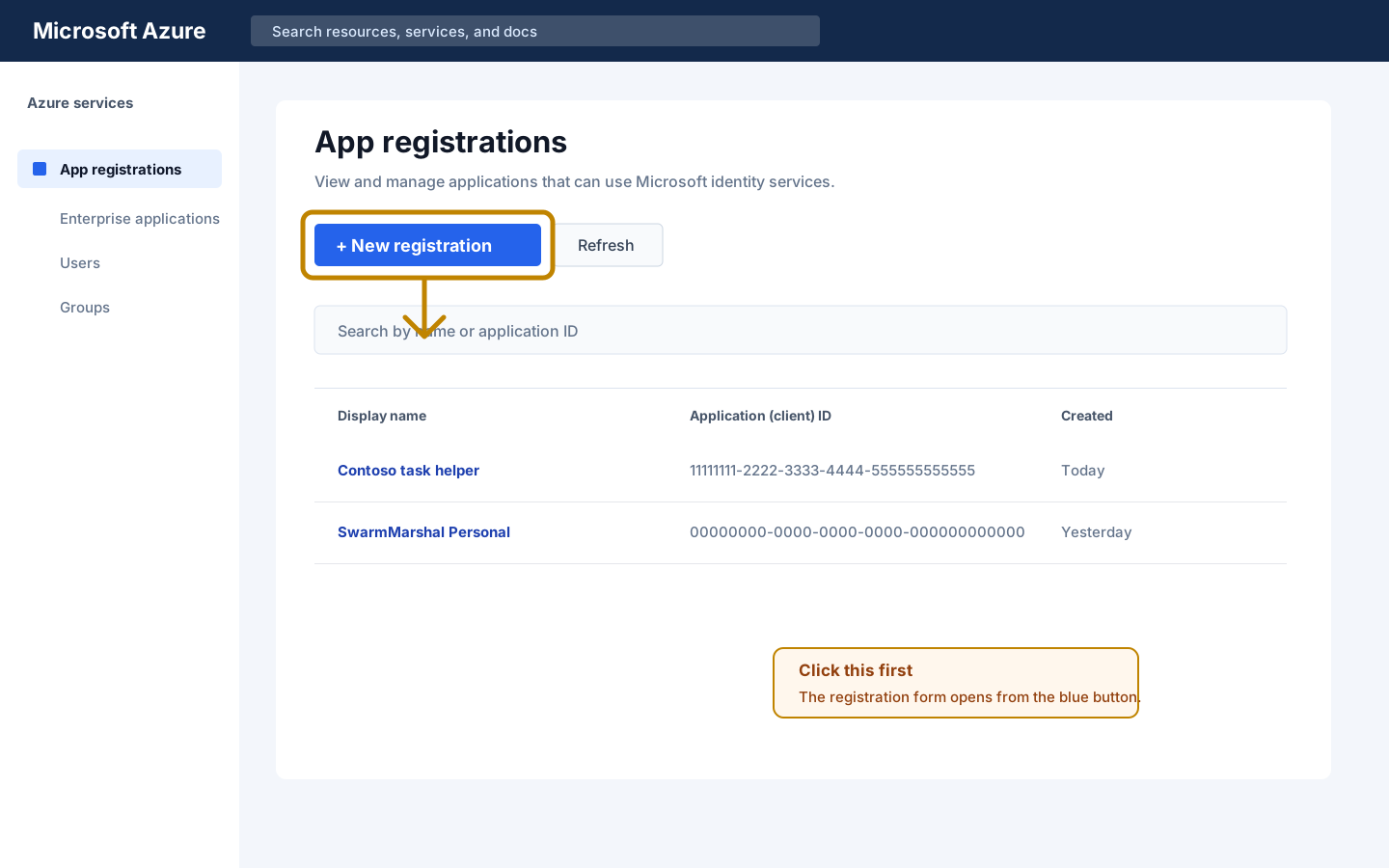
Open App registrations
Entra / Azure · App registrations
In the top search bar type App registrations and click the matching service.
Alternatively open this direct link.
Click + New registration at the top of the list.
Step 3
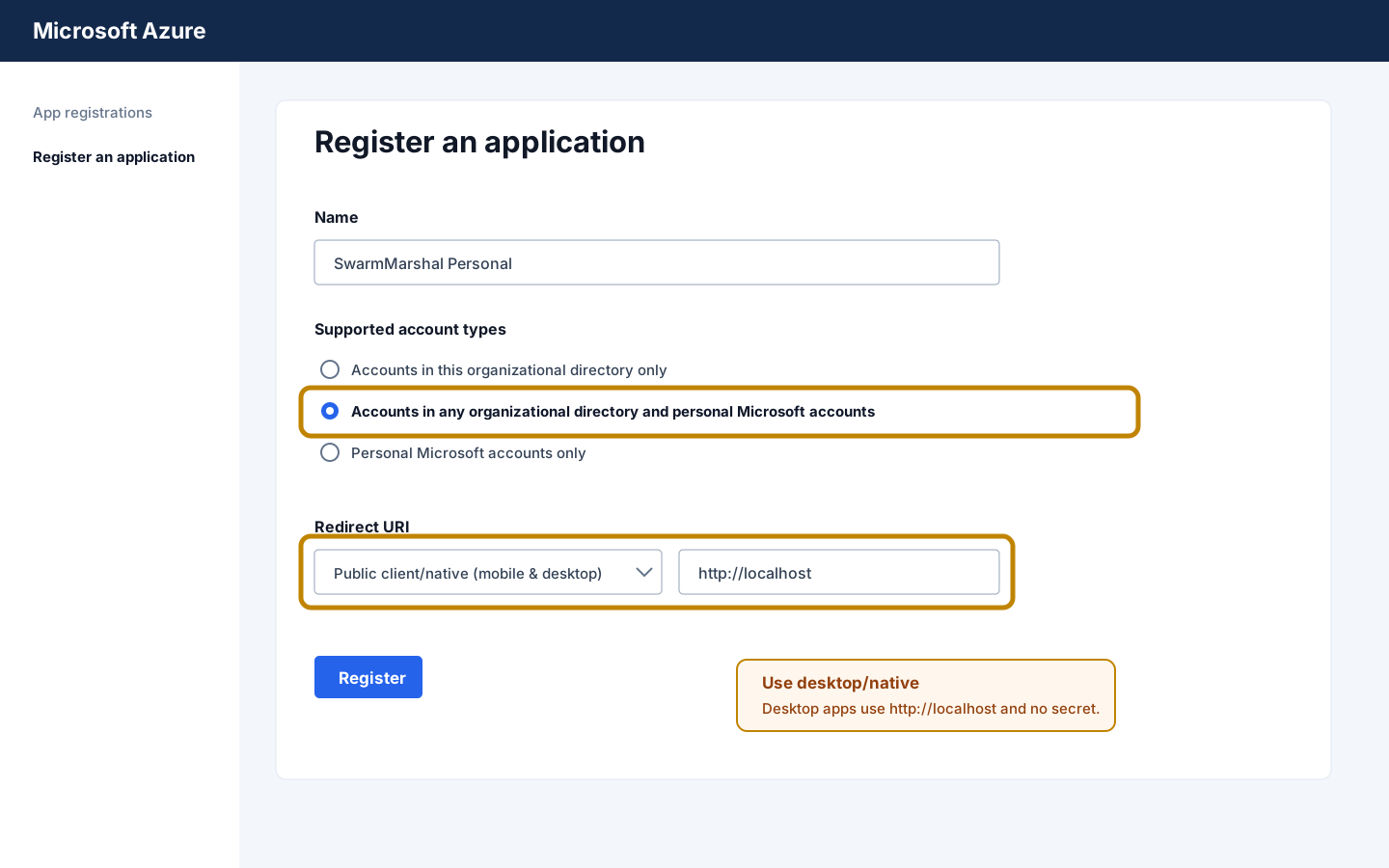
Register the application
Register an application
Give it a name you'll recognize (SwarmMarshal Personal is fine). For
Supported account types choose
Accounts in any organizational directory and personal Microsoft accounts — this
is the option that works for both Outlook.com and Microsoft 365. Under
Redirect URI pick Public client/native (mobile & desktop)
from the dropdown and enter http://localhost. Click Register.
Step 4
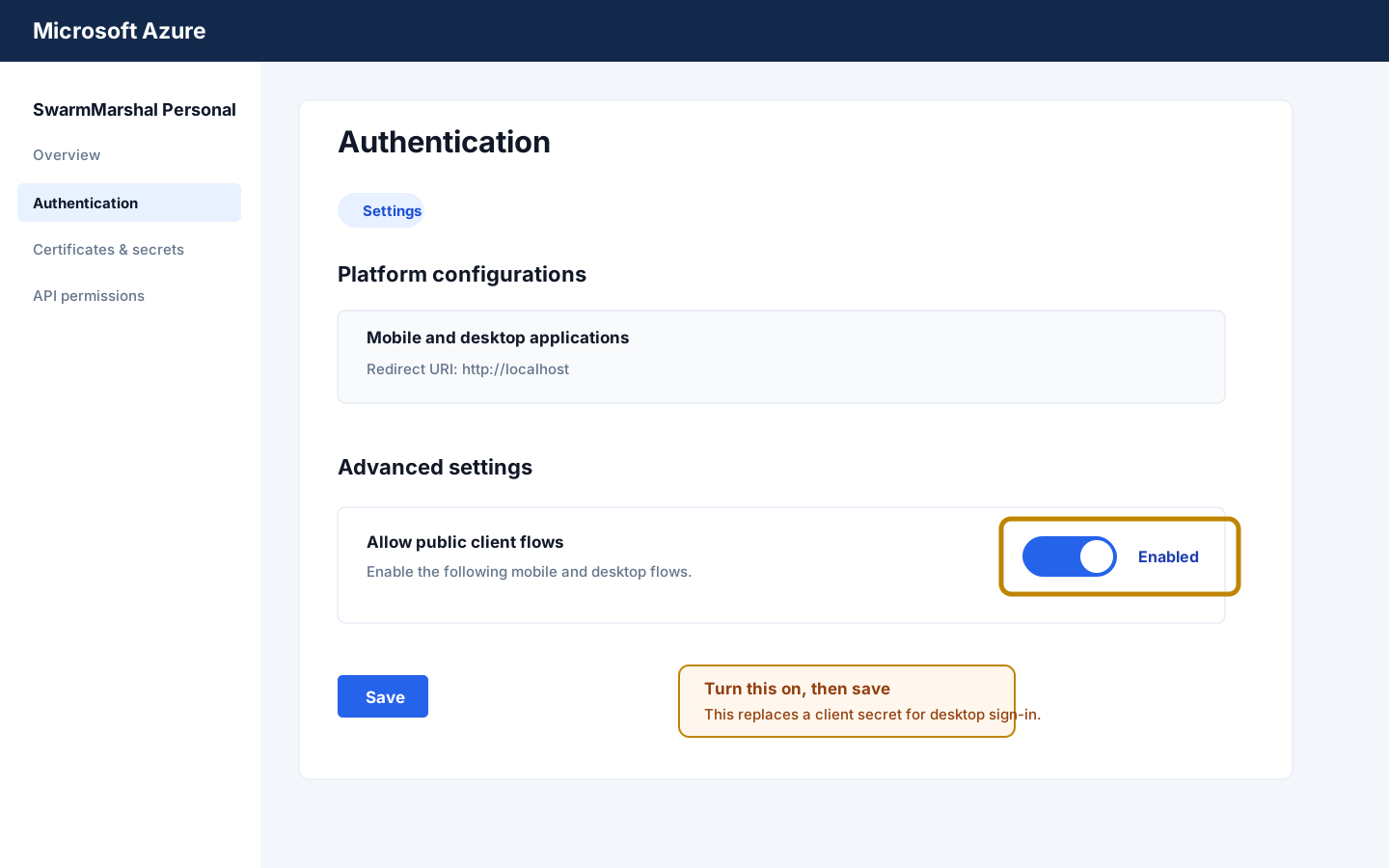
Allow the public client flow
Authentication · Allow public client flows
On the new app's page, open Authentication from the left menu. On the
Settings tab, find Allow public client flows and set it to
Enabled. In older portal layouts this same switch may appear under
Advanced settings as Yes. Click Save at the top.
This tells Microsoft it's okay for SwarmMarshal to sign in without storing a client secret — the
right setup for a desktop app.
Step 5
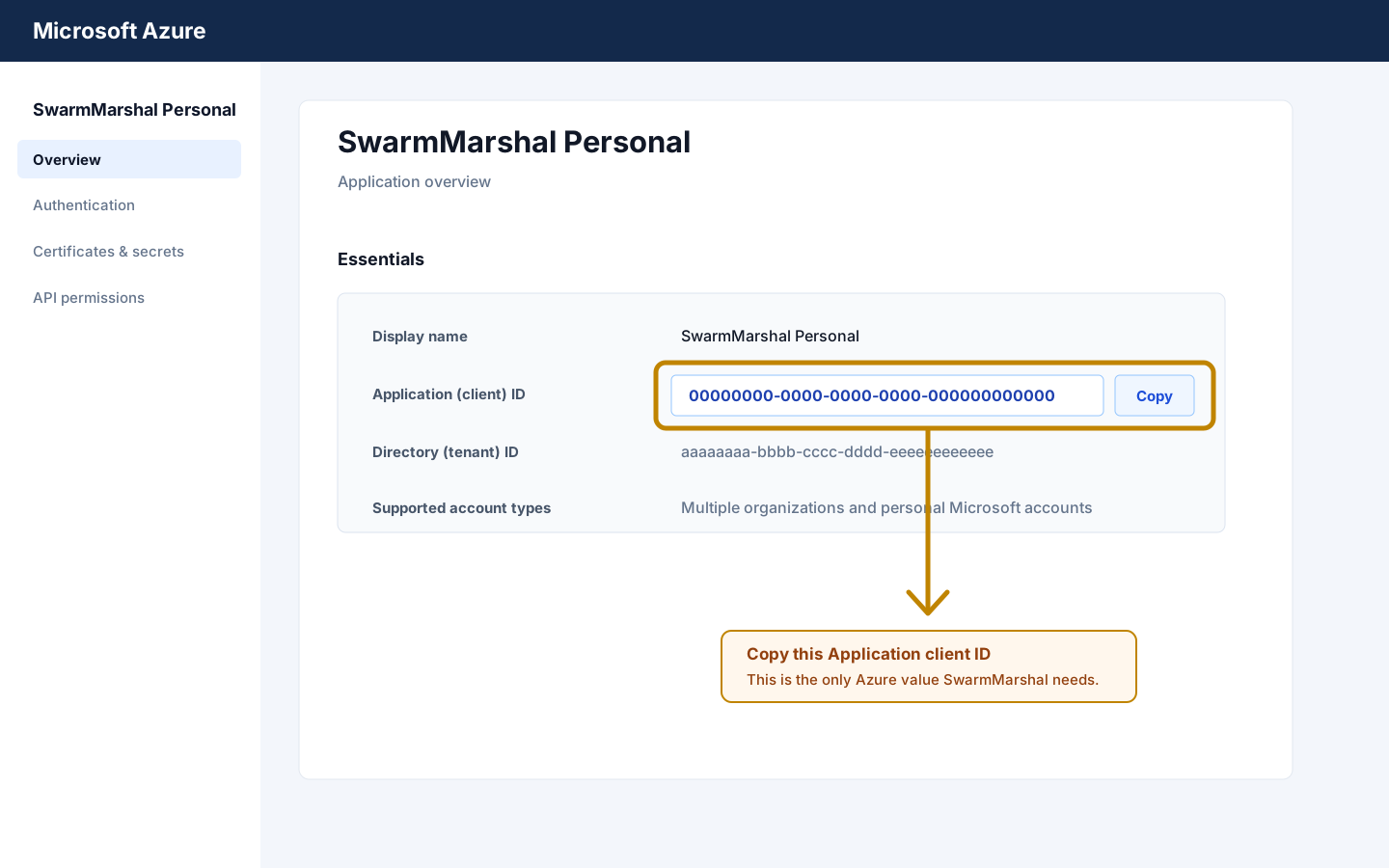
Copy the Application (client) ID
Overview · Application (client) ID
Click Overview in the left menu. You'll see a field called
Application (client) ID with a UUID next to it — copy that value. You do not
need to create a client secret and you do not need to pre-configure API permissions. SwarmMarshal
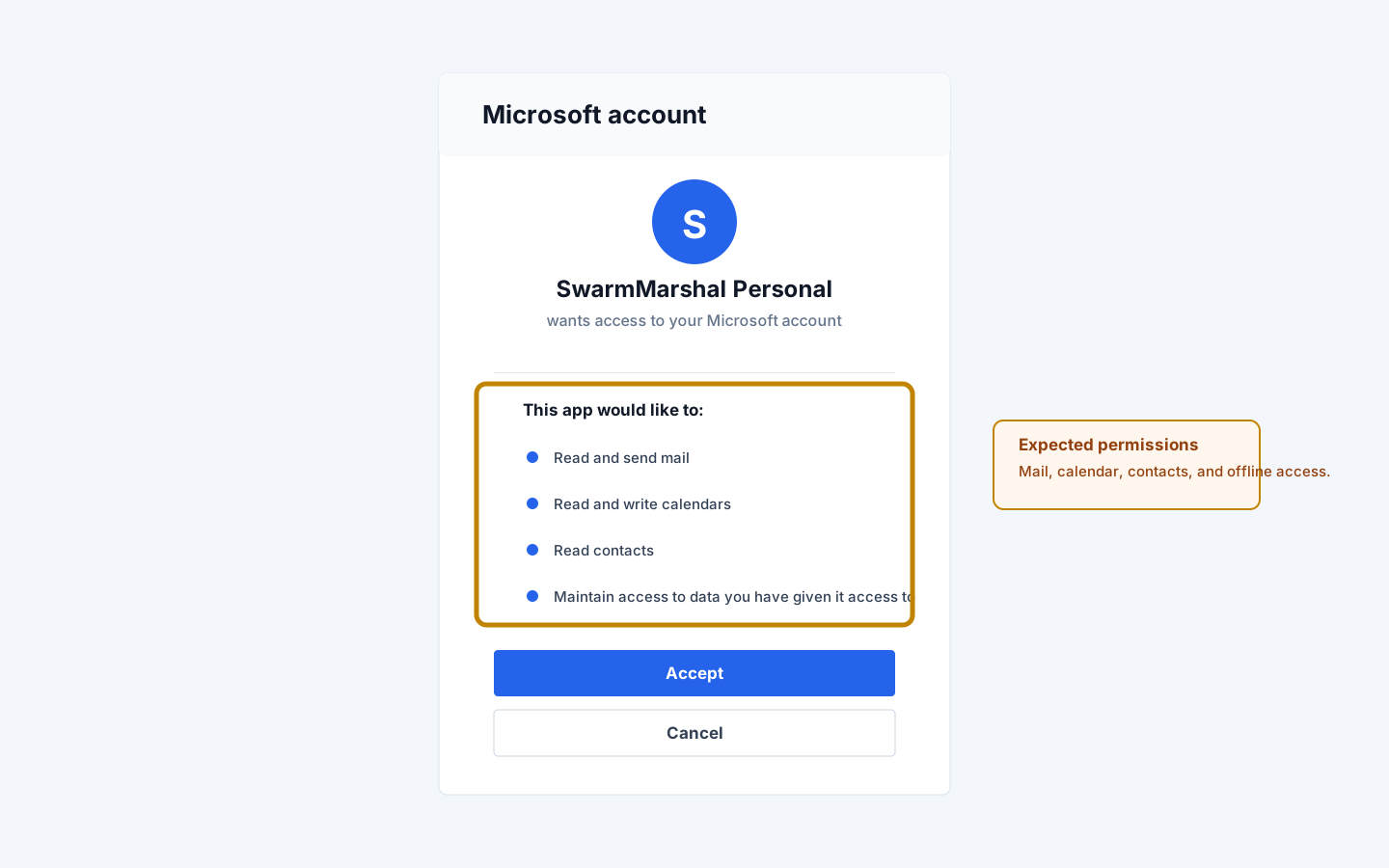
requests delegated consent at sign-in time for mail read/write, mail send, calendar read/write
including shared calendars, contacts read/write, and offline access so it can refresh tokens in the
background.
Step 6
Paste into SwarmMarshal
Permissions · Mail + Calendar + Contacts
In SwarmMarshal open Add Account, choose Email, then choose
Outlook / Hotmail / Microsoft. Paste the Client ID into the wizard or run the
guided Microsoft setup and let it fill the value for you. Click Sign in with Microsoft;
your browser will open Microsoft's sign-in page. Approve the delegated permissions and you'll be
returned to SwarmMarshal with the account linked.
Troubleshooting
"AADSTS7000218: The request body must contain the following parameter: client_secret".Allow public client flows is still off. Go back to Step 4, set it to
Enabled or Yes, and click Save.
"AADSTS50011: The reply URL specified in the request does not match".
The redirect URI isn't registered correctly. Re-open the app's Authentication
page and make sure http://localhost appears under Mobile and desktop
applications (not Web). Add it there and save.
Work or school account says the admin must approve. Microsoft 365 tenants can
block personal app registrations. Ask your IT admin to grant delegated consent for mail read/write,
mail send, calendar read/write, contacts read/write, and offline access, or register the app inside
the tenant instead of on a personal account.
Sign-in says IMAP is disabled. Microsoft 365 disables IMAP for some mailbox
policies. An admin has to enable IMAP access on the mailbox; the personal Outlook.com
service has it on by default.
Security notes
The Application (client) ID identifies your Azure registration to Microsoft. On its own
it can't read any mailbox — it only becomes useful after you sign in and consent to specific
scopes. SwarmMarshal encrypts the ID and the refresh token Microsoft issues at rest.
You can revoke access at any time at
account.live.com/consent/Manage
for personal accounts, or
myaccount.microsoft.com
for work accounts. Deleting the Azure app registration cuts off every session immediately;
clearing the credentials inside SwarmMarshal clears every token stored on this machine.
 SwarmMarshal